Day by day, we create faster cars, faster computers, smarter
gadgets and devices, so we can save time and enjoy life more. Everyone
wants to work faster on the computer (Mac in our case), at work or
leisurely, because the faster you access your files, folders,
applications etc, the more you increase your productivity.
In this world of speed, of programs developed for fast usage, an
application named SideFolders appears as a time-saving tool. Its role is
to give you quick access to the Sidebar, while positioned on the left
or right side of your Mac's screen.
More than an alternative of
the popular Finder, SideFolders will provide instant access to your
files if you drag and drop them to SideFolders’ window. In addition, the
app will allow you to organize your files and folders in a logical
order rather than a hierarchical order.
This handy application
can be bought for the price of only five dollars in the Mac App Store,
and if you're not sure whether to spend money or not without trying it
out first, you can download the 15 days trial version from its developer
website. Once installed, it will occupy only 1.6 MB of your hard drive
and its installation only takes a few seconds.
The LooksFirst
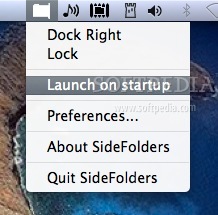
of all, SideFolders will appear on your Mac's desktop and it can also
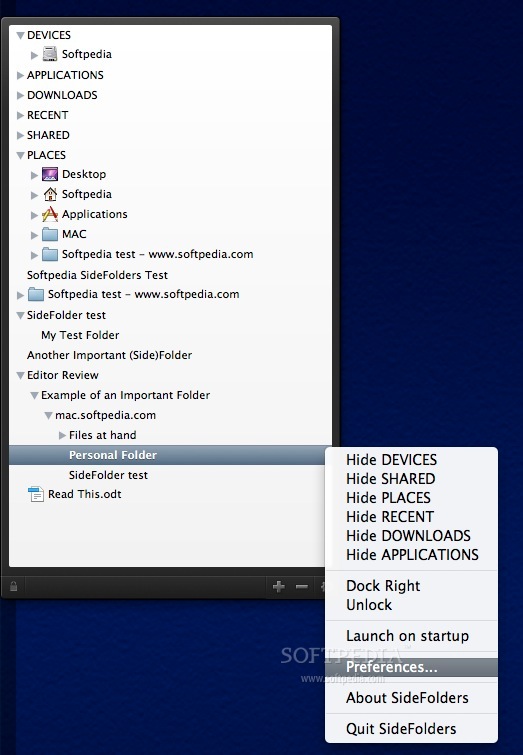
be added to the menu bar using the app's Preferences dialog.
Nevertheless, on the menu bar you will only see a few options, and you
will not be able to access the Sidebar itself. The menu bar options are
included in the Preferences in the app's main window, but they're here
to give you a faster alternative, since the menu bar is easier to use.
Moving
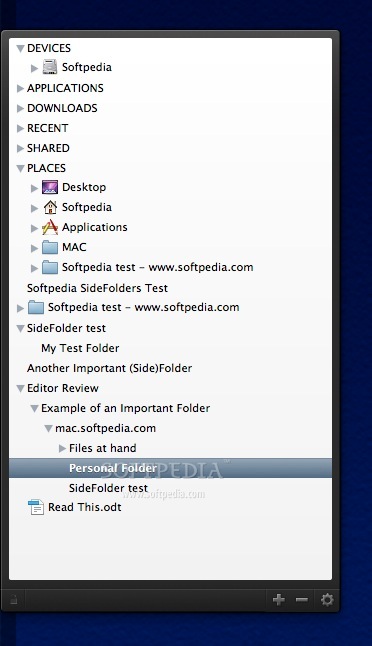
on to SideFolders’ main window, one could say that its design is
simple, yet attractive and elegant. Note that its functionality weighs a
lot more than its appearance. Its window's is very similar to the
Finder, with the only difference that Finder displays white rows
followed by darker rows.
The partitions, folders, etc are
displayed in a hierarchical manner, which makes it more compact.
Everything you browse behaves like a drop-down menu, a feature which
strengthens the idea of simplicity. This way, you will be able to browse
through your Mac more easily.
SideFolders’ border colors are
black and its interior is white. The scroll bar is very neat and
pleasant to look at, while the buttons positioned on the lower bar are
of grayish color, which makes it easy to distinguish.
All in
all, SideFolders has a rather classic style to it, its design is
minimalistic but also appealing, which makes it look like a modern,
serious application.
The WorksSideFolders
provides fast access to your Mac's downloads, devices, places, shared
folders, and recent files, but also to other files and folders you have
added. The other important feature is that you have more freedom to
organize your files and folders than in the Finder's filesystem
hierarchy.
The application will save you time because it is
located on either sides of the desktop, on the left or right, which
makes it very easy to access. Furthermore, SideFolders' window will jump
out as soon as you touch the desktop's border, corresponding to where
SideFolders is hiding.
This auto-hide feature is great because
you will always want your desktop uncluttered and clean. Therefore,
auto-hiding and popping out when you need it will help you manage your
desktop space.
The thing that I really enjoy in SideFolders is
that you can set a keyboard shortcut to make it appear or disappear. If
you prefer not to move the cursor on the desktop's border, SideFolders
will provide this keyboard shortcut alternative.
However, by
using keybindings, the app will automatically become 'locked', which
means that it will not disappear automatically anymore, and you have to
use the keybinding again in order to hide it. This shouldn't be a
problem though, if you're used to keyboard shortcuts.
An
additional feature is its size flexibility. You may change its size very
easily. Just hold the mouse cursor on its border and simply move it in
any direction to adjust SideFolders' size. You can make it tall, short,
wide, and even as large as your desktop, but note that it will always be
annexed to your Mac's desktop border.
Coming now to the app's
contents, an interesting feature enables you to move basically any file
or folder to anywhere in the list. This can be useful if you want to set
to that file or folder a more accessible place, or rank it depending on
its importance.
In addition, you can drag any item from your
any place (your desktop, for instance) to SideFolders. You can put it
inside any existing partition or simply above or below them, thus
positioning it to a 'special' place, where you can reach it without any
difficulty.
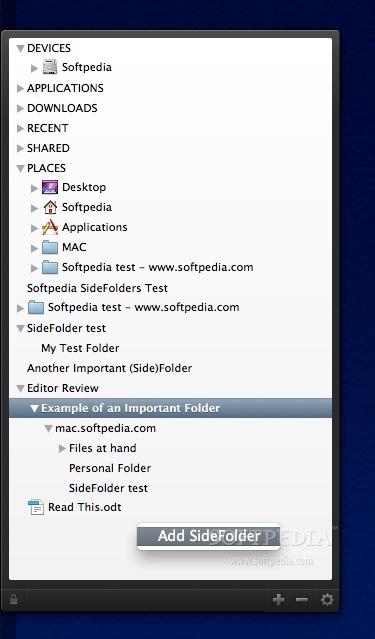
Another useful feature is that you can have a better
time organizing your files. This means that you may create actual
SideFolders, which are basically 'new folders' but they are created
inside the application's window, separated from the other partitions.
You
can then organize your files with the help of these folders, each
folder consisting of a new category. Moreover, these special folders are
'iconless', which makes them more distinguishable from all the other
items.
Besides displaying the usual partitions that are also
contained in the Finder, which are: Devices, Shared items and Places,
SideFolders will also give you quick access to your Downloads, Recently
used items (such as recently used applications and files) and
Applications folders. These three have the same rank in the list as the
ones from the Finder, thus making them easier to find.
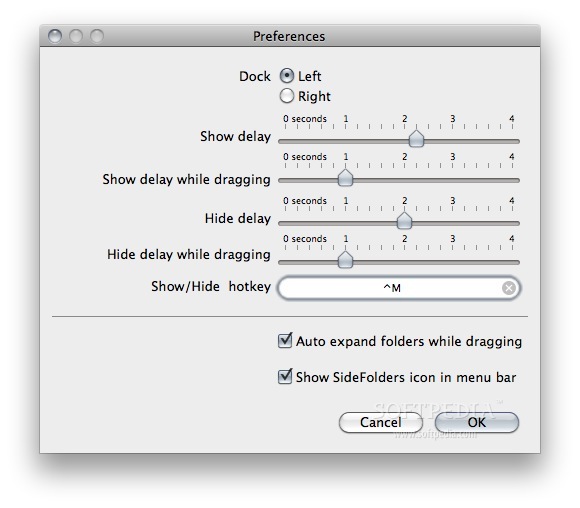
In
SideFolders' Preferences, you will be able to hide any partitions and
dock SideFolders to the left or right of your desktop. Also, the speed
at which the application will jump out and hide can be set: from 1 to 4
seconds. Finally, you can choose your preferred keybinding.
The GoodThe
application is a great alternative to Finder, because you can access
your files and folders faster and easier. It is a great tool to have if
you want to access your recently closed files, folders or applications
because it can appear by hitting your mouse pointer to your desktop's
border or hitting a keybinding. You can also pin important files and
organize them in the order of their importance, so you can have them
right by your side.
The BadSometimes,
adding files and folders to the app’s window took a considerable amount
of time and the Mac’s configuration had nothing to do with it, for
sure. The problem was also felt on another, better Mac (dual quad core
and 12 GB of RAM). Other times, it works fine, after reinstalling it for
instance. However, it cannot be asserted that the glitch is permanent.
The source of this problem is unknown, but, still, it exists.
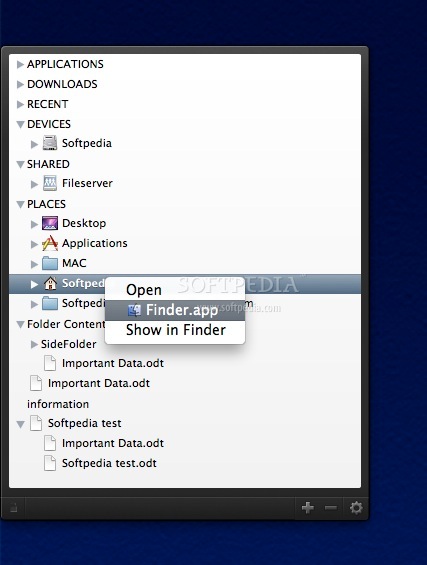
In
addition, the context menu of all the items that you view in SideFolders
is poor. You will only see 'Open with...', 'Show in Finder' and
'Remove'. Basically all the other options are missing.
The TruthSideFolders
provides a quick way to access your most important files and what not,
and it gives you the possibility to organize your data in the order of
their importance too. You can easily add files that you will want to
access later on SideFolder's window.
This way, it will keep them
easy to reach; however, you will not have as many options as Finder
has, such as the options in a file's context menu.
Here are some snapshots of the application in action:
 BitComet Acceleration Patch تسريع التورنت, تسريع تحميل من تورنت, باتش مميز لتسريع برنامج BitComet
يقوم هذا الباتش والأضافة بتسريع تحميل الملفات MP3 وغيرها من الملفات
التي ترغب بتحميلها سوف تدهش بسرعة التحميل بواسطة برنامج BitComet عند
أستعمالك لهذه الأضافة المميزة ويقوم بتسريع بت تورنت ويعطيه أكبر كفائة
لتسريعه يساعد البرنامج على العثور على مزيد من المصادر لتسريع التحميل من
download.BitComet باتش مميز جدا ومن اهم مميزات البرنامج : أليا يقوم
البرنامج أيقاف ومعاودة التحميل Automatically resumes paused downloads,
يقوم البرنامج بتخلص من ملفات التجسس والملفات الضارة Clean and free,
without any adware or spyware, يقوم بالبحث اكثر عن مصادر التحكمل لتسريع
التحميل Finds more sources at user-specified intervals
BitComet Acceleration Patch تسريع التورنت, تسريع تحميل من تورنت, باتش مميز لتسريع برنامج BitComet
يقوم هذا الباتش والأضافة بتسريع تحميل الملفات MP3 وغيرها من الملفات
التي ترغب بتحميلها سوف تدهش بسرعة التحميل بواسطة برنامج BitComet عند
أستعمالك لهذه الأضافة المميزة ويقوم بتسريع بت تورنت ويعطيه أكبر كفائة
لتسريعه يساعد البرنامج على العثور على مزيد من المصادر لتسريع التحميل من
download.BitComet باتش مميز جدا ومن اهم مميزات البرنامج : أليا يقوم
البرنامج أيقاف ومعاودة التحميل Automatically resumes paused downloads,
يقوم البرنامج بتخلص من ملفات التجسس والملفات الضارة Clean and free,
without any adware or spyware, يقوم بالبحث اكثر عن مصادر التحكمل لتسريع
التحميل Finds more sources at user-specified intervals


 Version reviewed:
 Features:


 (4/5)
(4/5)

 لتطلع
لمستقبل Windows 8 يمكنك الأن تحميل واجهة Windows 8 Professional يوفر
هذا الشكل المميز مجموعة من التغييرات الرائعة التي تقوم بتغيير مظهر
ويندوز فيستا الخاص بك Vista سوف يوفر البرنامج أداة تعليمية حول كيفية
استخدام وتثبيت البرنامج واستخدام عناصر هذه المجموعة من ثيم Windows 8
Professional Edition البرنامج متوافق مع نظام ويندوز فيستا Windows Vista
لتطلع
لمستقبل Windows 8 يمكنك الأن تحميل واجهة Windows 8 Professional يوفر
هذا الشكل المميز مجموعة من التغييرات الرائعة التي تقوم بتغيير مظهر
ويندوز فيستا الخاص بك Vista سوف يوفر البرنامج أداة تعليمية حول كيفية
استخدام وتثبيت البرنامج واستخدام عناصر هذه المجموعة من ثيم Windows 8
Professional Edition البرنامج متوافق مع نظام ويندوز فيستا Windows Vista


